The PX7 Audio Batch app icon

PX7 Audio Batch

Normalize, trim and fade audio in batches.

Apply the same processing steps to a folder of audio files. Match loudness, trim silence from the start and end, and add fades. Listen to the result before exporting; originals stay untouched.

macOS 14 Sonoma or later, Apple silicon or Intel.

Less than 5 MB to download. No card needed for the trial.

€15 one-time · one app-specific key for up to 7 Macs · no account or subscription.

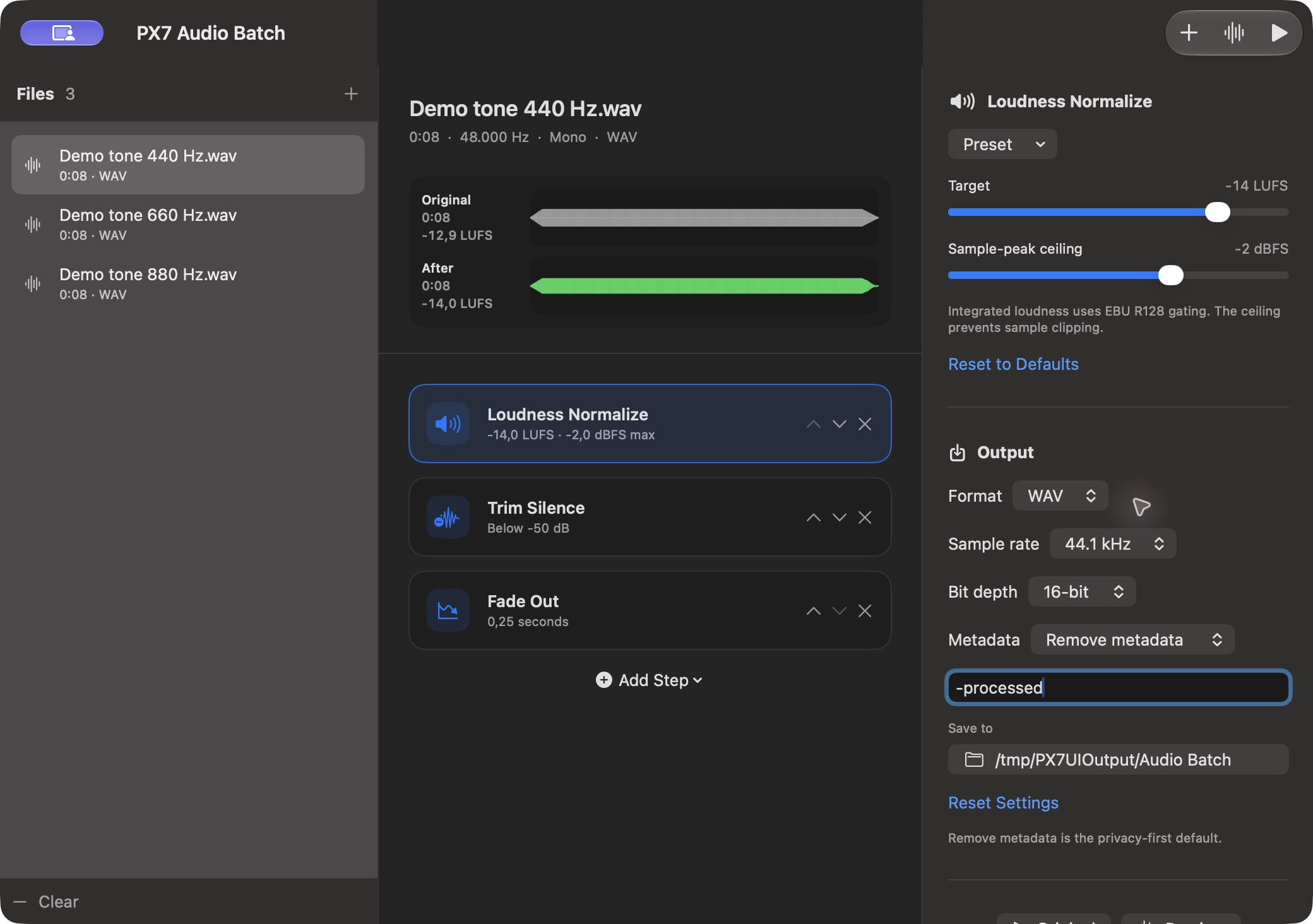
PX7 Audio Batch with three demo files and loudness normalization, silence trimming and fade-out steps
Set the processing steps once, compare the original and processed preview, then export the files together. Shown with three generated demonstration tones.

Apply the same processing steps to a folder.

See before and after

Compare both waveforms, read integrated LUFS and listen to the processed preview before committing to the queue.

Arrange and save processing steps

Stack the actions in the order the audio needs, move them up or down, remove what you do not need and reuse the setup next time.

Make loudness consistent

Match perceived loudness with Streaming, Podcast or Broadcast presets, target integrated LUFS directly, or peak-normalize when level is what matters.

Trim silence and add fades

Trim silence, cut an exact amount from either end and add controlled fades without opening every file in an editor.

Keep control of metadata

Preserve source metadata when it belongs in the result, or remove it from every exported file with one output setting.

Progress and errors for each file

Follow progress file by file. A failed item is reported clearly, successful work remains intact and stopping the queue never damages an original.

Your originals stay untouched

Every result goes to a folder you choose. Existing files are never overwritten, and cancelled or failed work leaves no partial export behind.

Choose an output format and sample rate

Export WAV or AIFF at up to 96 kHz with 16, 24 or 32-bit PCM, or make a compact high-quality M4A at up to 48 kHz. Preserve source metadata when you need it, or remove it for a clean export.

The details

Try Audio Batch on your files

  1. Install and try it. Open the downloaded DMG and drag Audio Batch to Applications. The seven-day trial starts when you first open the app and includes batch processing and export.
  2. Check the result. Add a few files, choose your processing steps and listen to the preview. Export to a separate folder; your originals stay untouched.
  3. Activate after buying. Buy a €15 license for Audio Batch. Paste the key from your purchase email into Settings → License and choose Activate. One key covers this app on up to seven Macs.

After the trial ends, you can still preview audio. A license is needed to process and export files. If your license email is missing, check spam or contact support.

Quick answers

Questions about PX7 Audio Batch

What is PX7 Audio Batch?
Normalize loudness, trim silence and add fades to audio files in batches on your Mac. Compare the processed preview before exporting.
Where does PX7 Audio Batch do its work?
PX7 Audio Batch processes audio locally on your Mac.
How much does PX7 Audio Batch cost?
PX7 Audio Batch costs €15 once. It includes a seven-day trial, and one app-specific key can be used on up to seven Macs. There is no subscription.
Which Macs can run PX7 Audio Batch?
macOS 14 Sonoma or later, Apple silicon or Intel
How do I normalize multiple audio files on a Mac?
Add the files, set a loudness target, and export the queue — each file is measured and adjusted rather than simply made louder. PX7 Audio Batch uses integrated LUFS with EBU R128 / ITU-R BS.1770 gating.
Can I batch process a folder of audio files?
Yes. Drop in a folder, build the processing steps once, and every file runs through the same pipeline. WAV, AIFF, CAF, M4A, MP3, AAC and FLAC can go in; WAV, AIFF and M4A come out.
How do I remove silence from the start and end of many audio files?
Enable the trim step and the quiet lead-in and tail are removed from every file in the queue. This tidies the beginning and end of each file; it does not close gaps in the middle of a recording.
Can I apply the same fade to hundreds of audio files?
Yes — the pipeline is defined once and applied to the whole queue, so a fade set for one file is applied identically to every other file in the batch.
Can I build a reusable audio processing workflow?
Yes. The steps are arranged visually and kept, so the same chain can be reused on the next set of files instead of being rebuilt. Originals are left untouched and exports are atomic and collision-safe.